Table of Contents


Collecting search results
In this stage, you'll collect URLs from search results and add them to your project.
1. View your search queries
You'll see the search queries generated from your tuples in the “Search” panel.
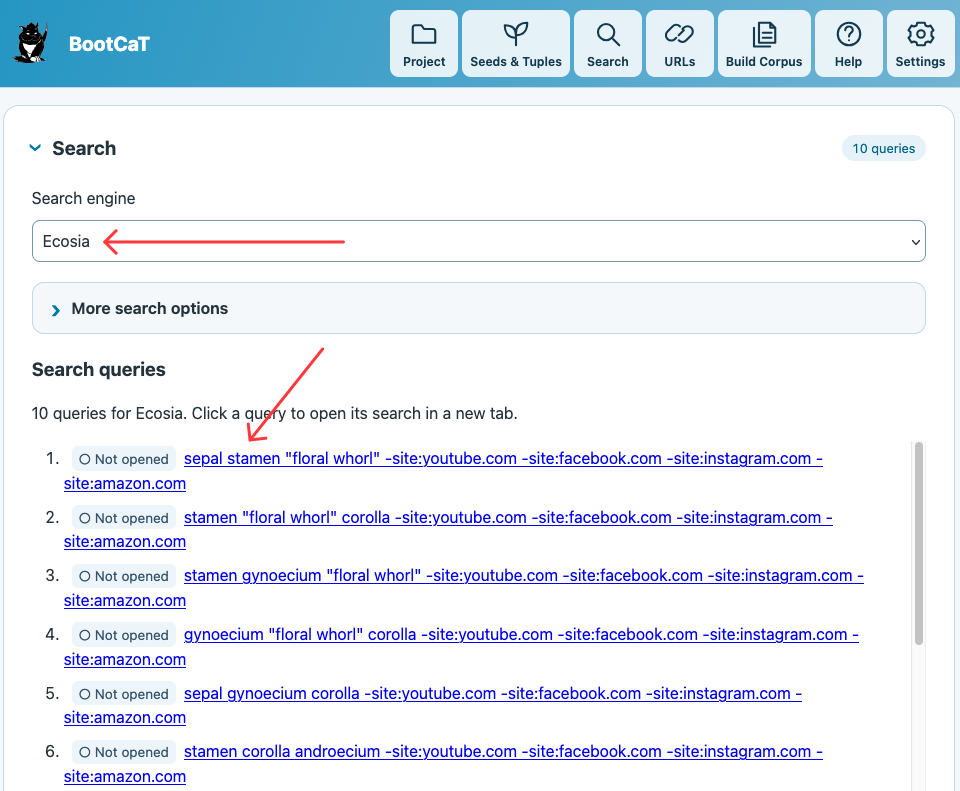
2. Select Ecosia
Select Ecosia as your search engine. We'll use it for this tutorial because it doesn't require an account.
Note: Google is the default search engine. To use it with BootCaT, you need to be signed in to your Google account in the same browser. You won't be charged for searches; see the Google search instructions for more information. DuckDuckGo is another alternative if you prefer not to use a Google account.
3. Open a query and collect its results
Click on one of the queries to open its search results in a new tab.
If a CAPTCHA appears, complete it and wait for the search results to load.
With the search results tab active, click on the BootCaT icon in your browser's toolbar to open the extension menu. Then click on “Add URLs from this tab to corpus”.
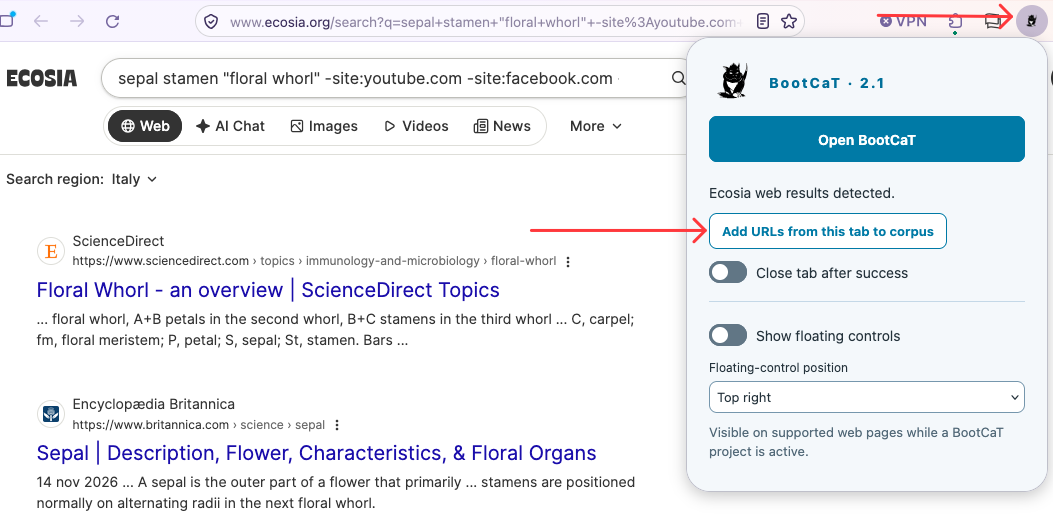
You can now close the search results tab and return to BootCaT. The query you used will be marked as collected in the “Search” panel.
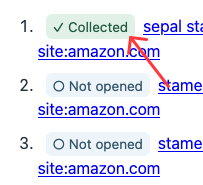
4. Check the collected URLs
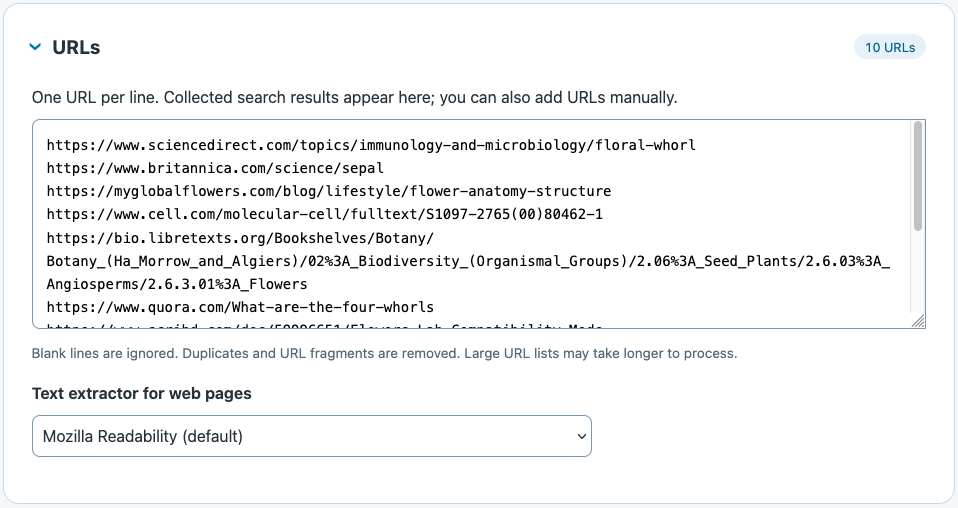
Scroll down to the “URLs” panel. You'll see the URLs collected from the search results in the list.